Shoppers
You can browse and buy without an account as a guest. An account adds order tracking, a wishlist, saved addresses, a wallet and reviews. Everything below is on ooshfashion.com.
Who this is for: Anyone shopping on OOSH, with or without an account.
Where to sign in: Shop at ooshfashion.com. Create an account or sign in from the person icon (top right).
Step 1
Browse and find products
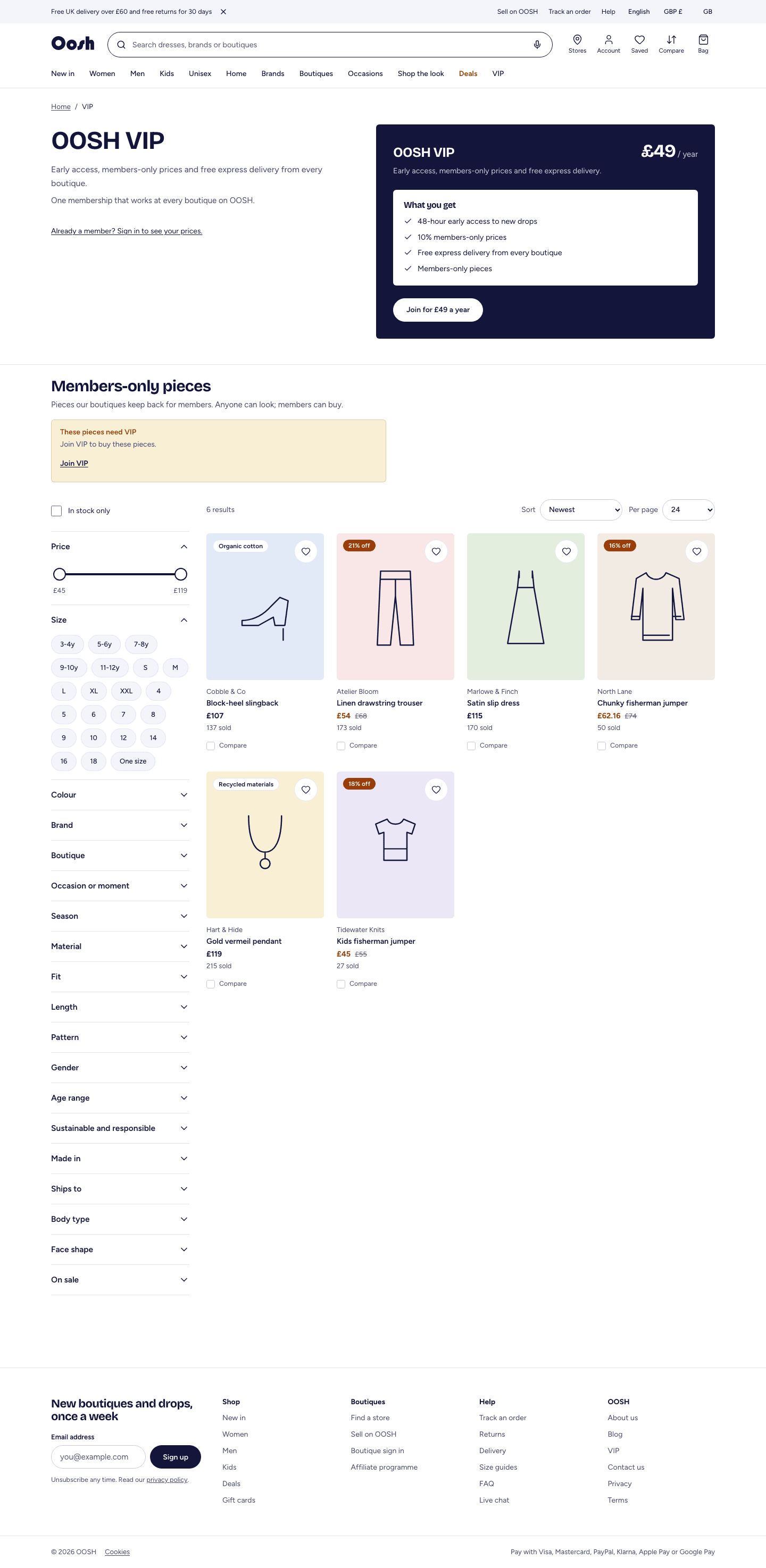
Use the top menu, search, or the boutique finder to discover pieces.
Shop → top menu, search bar
- 1Use the menu (Women, Men, Kids, Unisex, Home) to open a category, or Brands and Boutiques to browse by label or shop.
- 2Type in the search bar for a product, brand or boutique — it forgives spelling mistakes and suggests as you type. You can also search by voice where your browser supports it.
- 3On a category page, narrow results with the filters on the left: price, size, colour, brand, boutique and more. Change the order with Sort, and how many you see with Per page.
- 4Tick In stock only to hide sold-out sizes.
Step 2
Choose a size and add to bag
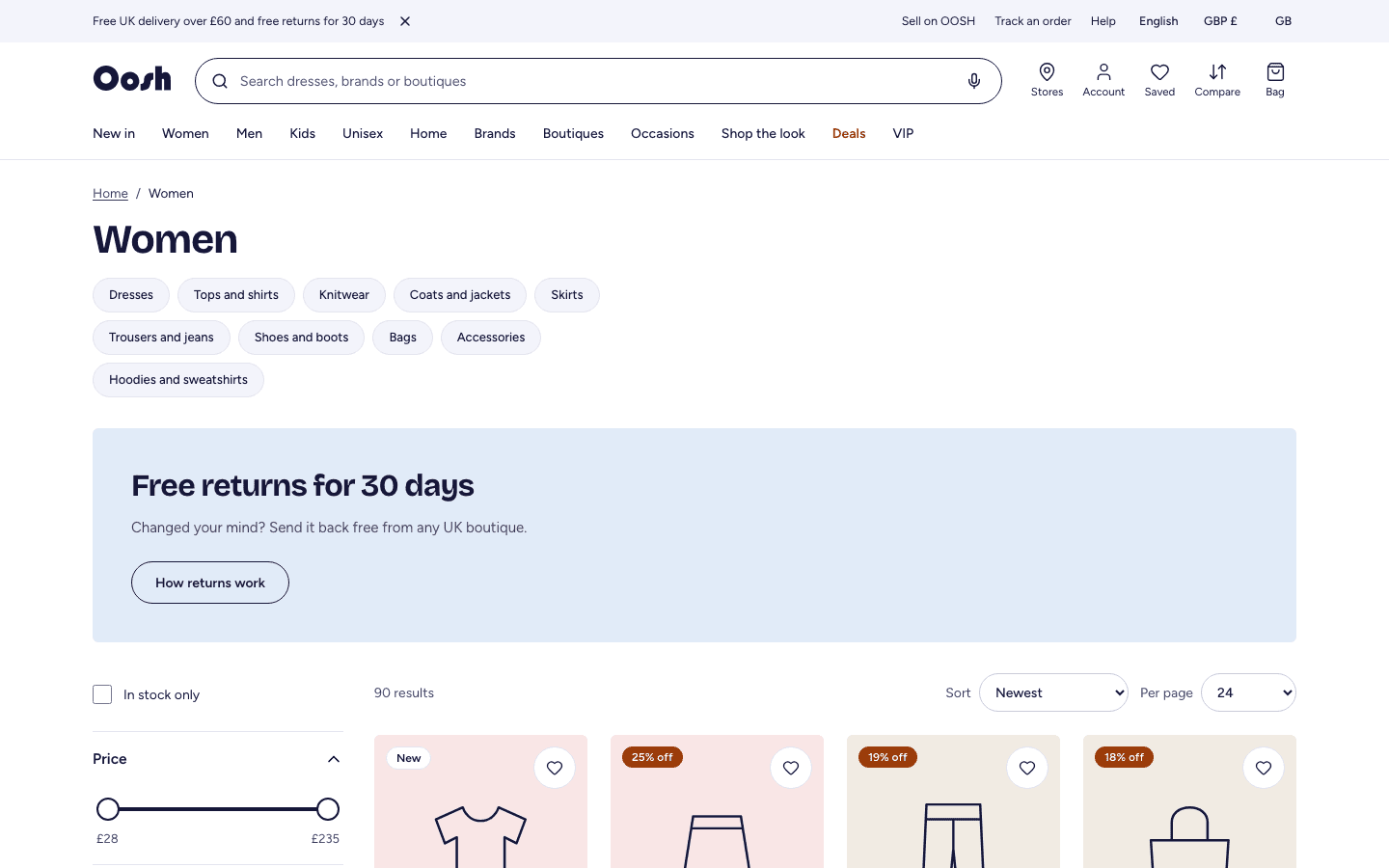
The product page has the photos, sizes, stock, delivery and reviews.
Shop → any product
- 1Open a product to see up to 9 photos, the price, and which boutique sells it.
- 2Pick a size. If you are unsure, open Size guide or Find my fit for a recommendation.
- 3Select Add to bag. A low-stock note (for example “only 2 left”) appears when a size is running out.
- 4Use Save (the heart) to add it to your wishlist for later, or Compare to line products up side by side.
Step 3
Check out and pay
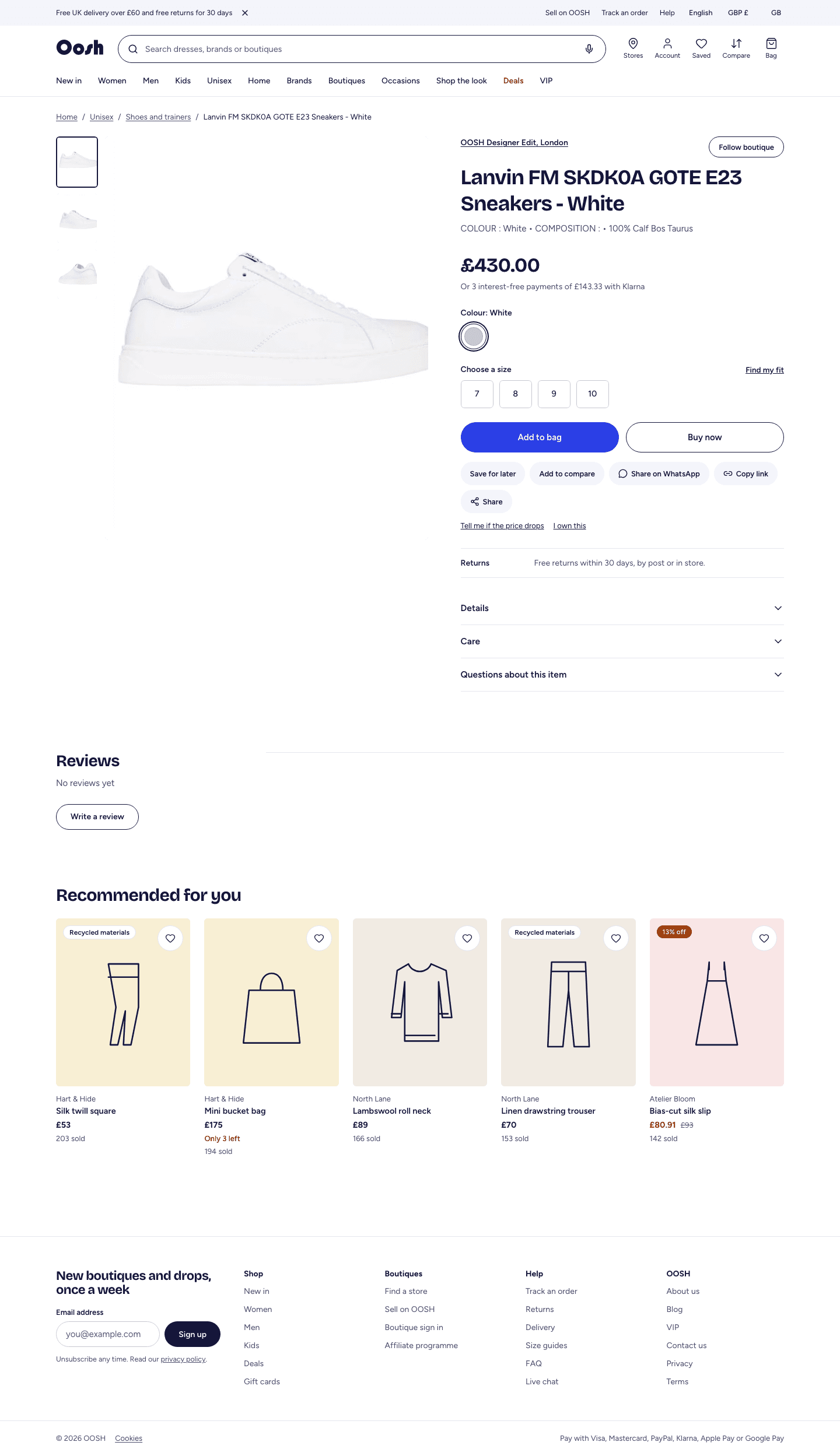
One bag and one payment, even when items come from several boutiques.
Shop → Bag → Checkout
- 1Open your Bag (top right) and review the items. Each boutique ships its own parcel, shown separately.
- 2Select Go to checkout. You can check out as a guest (just an email) or sign in.
- 3Enter your delivery address — start typing the postcode to find it — and choose a delivery option for each parcel.
- 4Add a gift card or discount code if you have one, then choose how to pay: card, Apple Pay / Google Pay, or Klarna (available for orders between £30 and £1,000).
- 5Select Continue to payment, enter your card details and confirm. You will see a confirmation page and an email.
Your card is only charged once the payment is confirmed. If a payment fails, nothing is taken and your items are released.
Step 4
Your account: orders, wishlist and wallet
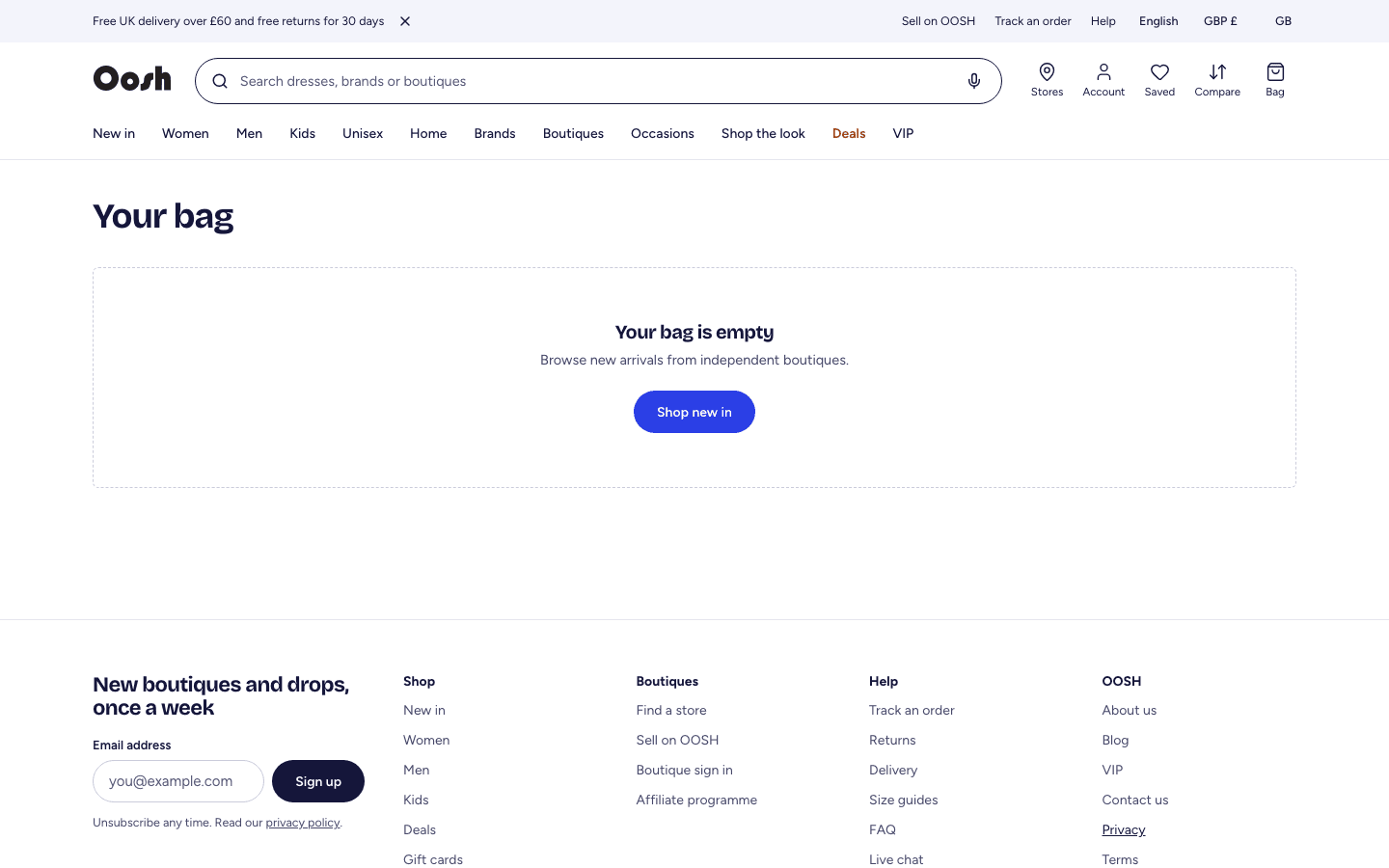
Everything you buy and save lives in your account.
Shop → Account
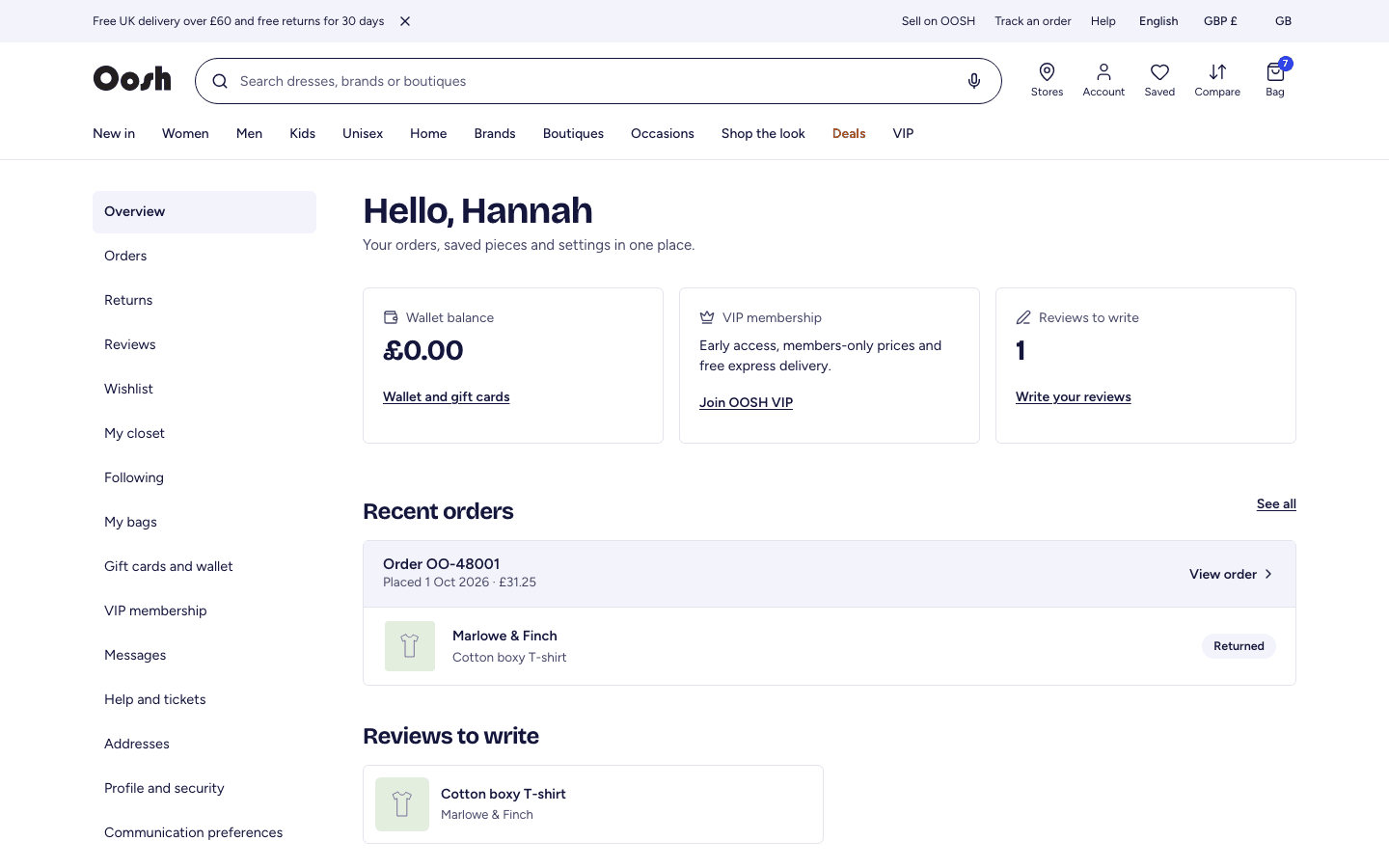
- 1Open Account (person icon) to see recent orders, your wallet balance and reviews to write.
- 2Open Orders to see every order and its parcels. Track an order (top bar) works without signing in, using your order number and email.
- 3Use Wishlist for saved pieces, My closet for items you own, and Following for boutiques and brands you follow.
- 4Your Wallet holds gift-card balance and any refunds paid to your wallet; it is spent automatically at checkout.
Step 5
Return an item and get a refund
Free returns for 30 days, each parcel separately.
Shop → Account → Orders → Return
- 1Open Account → Orders, find the order and select Return.
- 2Choose the items to send back and a reason, then submit. The boutique reviews the request.
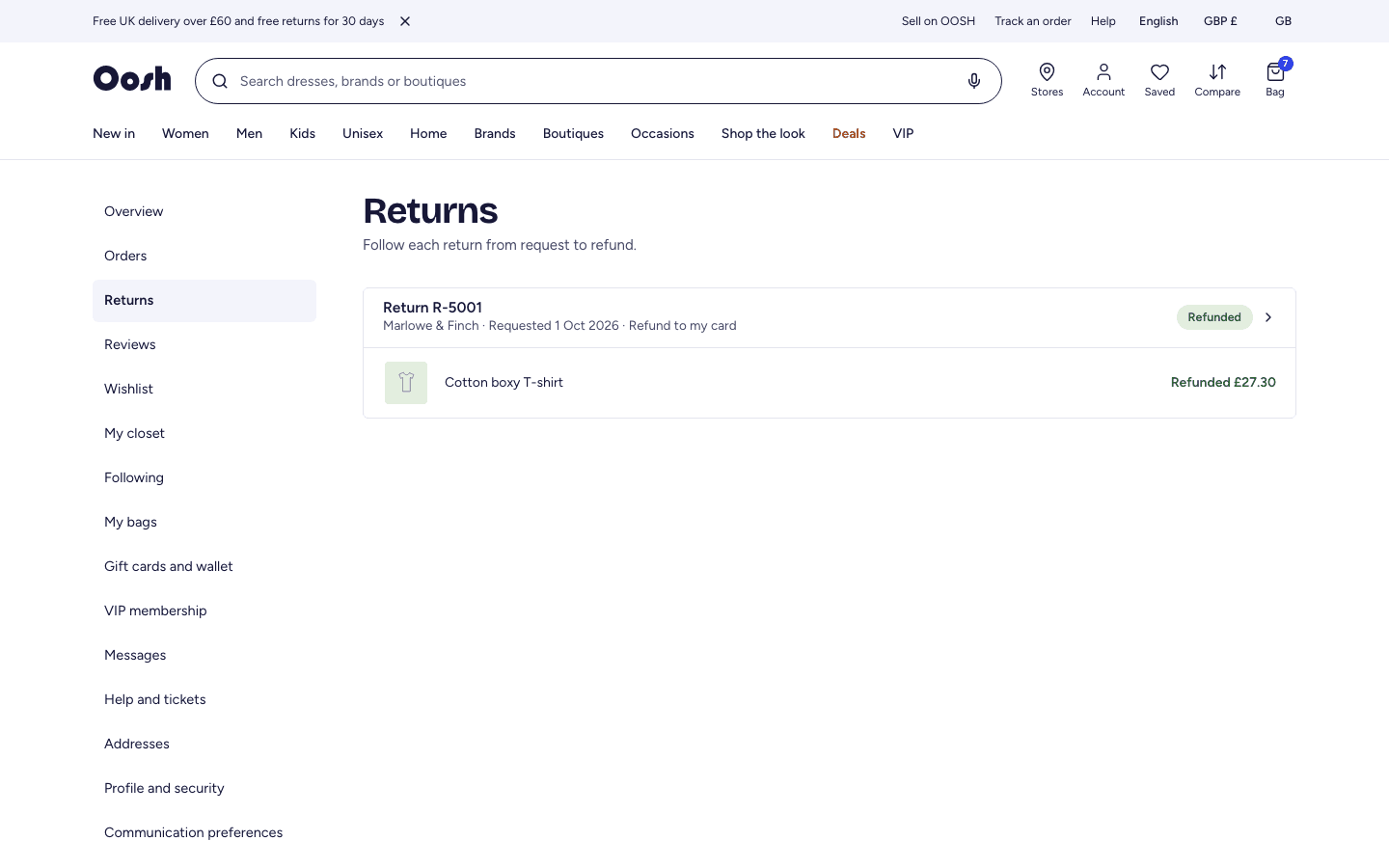
- 3Once approved, send the items back. When the boutique receives them, your refund is issued to your original card — or to your OOSH wallet if the card refund cannot be completed.
- 4Track the status any time under Account → Returns.
Step 6
OOSH VIP membership
Early access, members-only prices and free express delivery.
Shop → VIP
- 1Open VIP in the top menu to see what membership includes and the price.
- 2Select Join and pay. Your benefits apply straight away: members-only prices, free express delivery and early access to new drops.
- 3Manage or cancel your membership under Account → VIP membership.